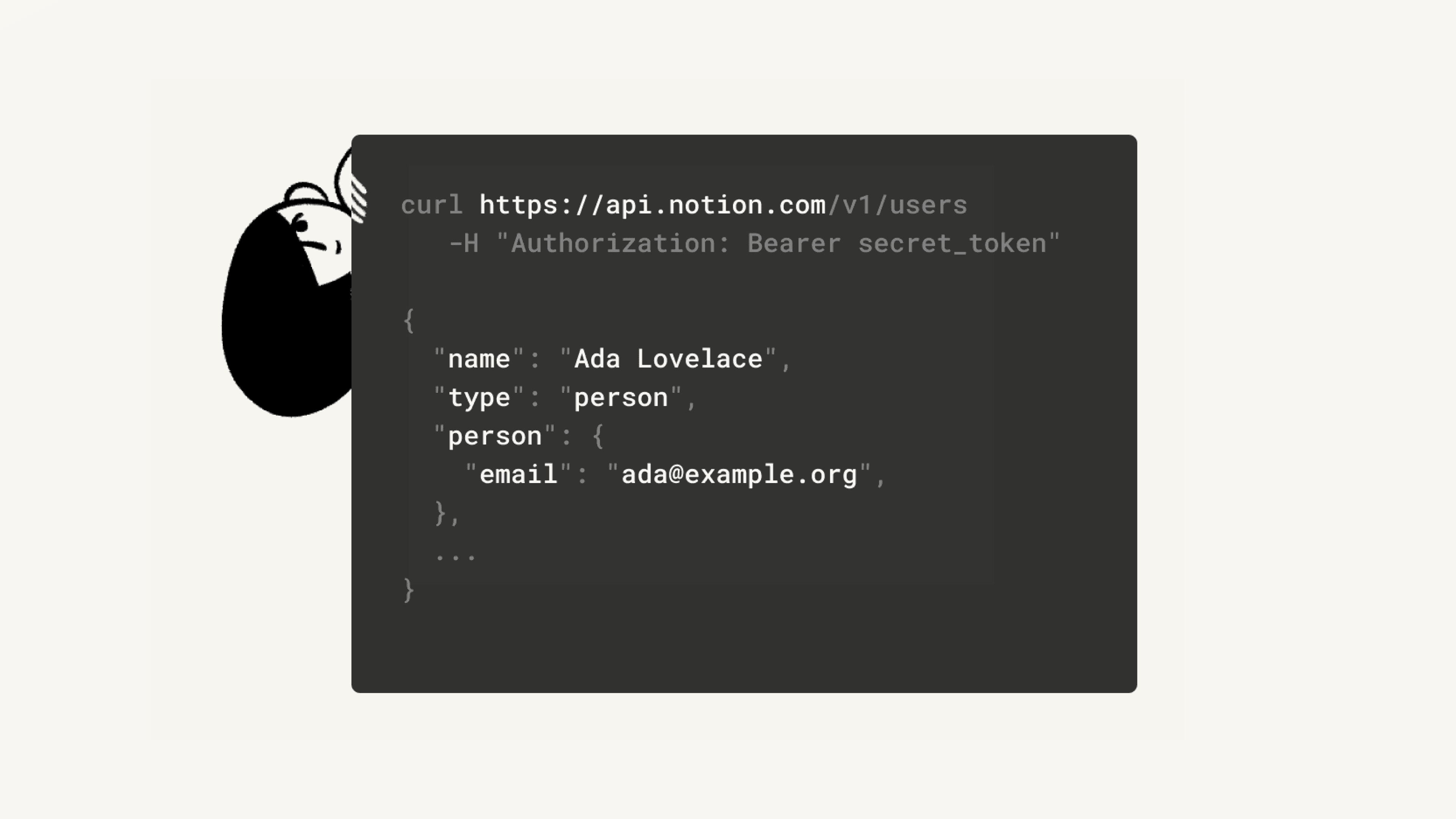
Add & manage connections
You can connect other software to Notion, automate actions within your workspace, and access connections built by our partners 🤖

Note: On Enterprise Plans, the following can be restricted to workspace owners:
The ability to add connections and decide who can connect or disconnect them at the page level.
The ability to install workspace-wide security and compliance connections.
Both Members and Workspace owners can add connections to a workspace in Settings → Connections.
Use the search bar or category filters to find the connection you're looking for. Connections are grouped by app, so products with multiple capabilities appear as one entry. Once a connection is added, you can add it to individual pages and databases in the ••• menu under Connections.
Note: On Enterprise plans, workspace owners can restrict which connections members are allowed to install. If a connection you're looking for isn't available, contact your workspace owner.
Connections built with the API follow a similar permission system to the sharing permissions for Notion users. In order to use a connection in your workspace, you'll need to add it to the specific page where it will be active.
Navigate to a page and select
•••at the top right.At the bottom of the pop-up, click
Add connections.In the resulting pop-up, search for and select the connection you would like to add to this page. You'll only see connections that have been created for and associated with this workspace.
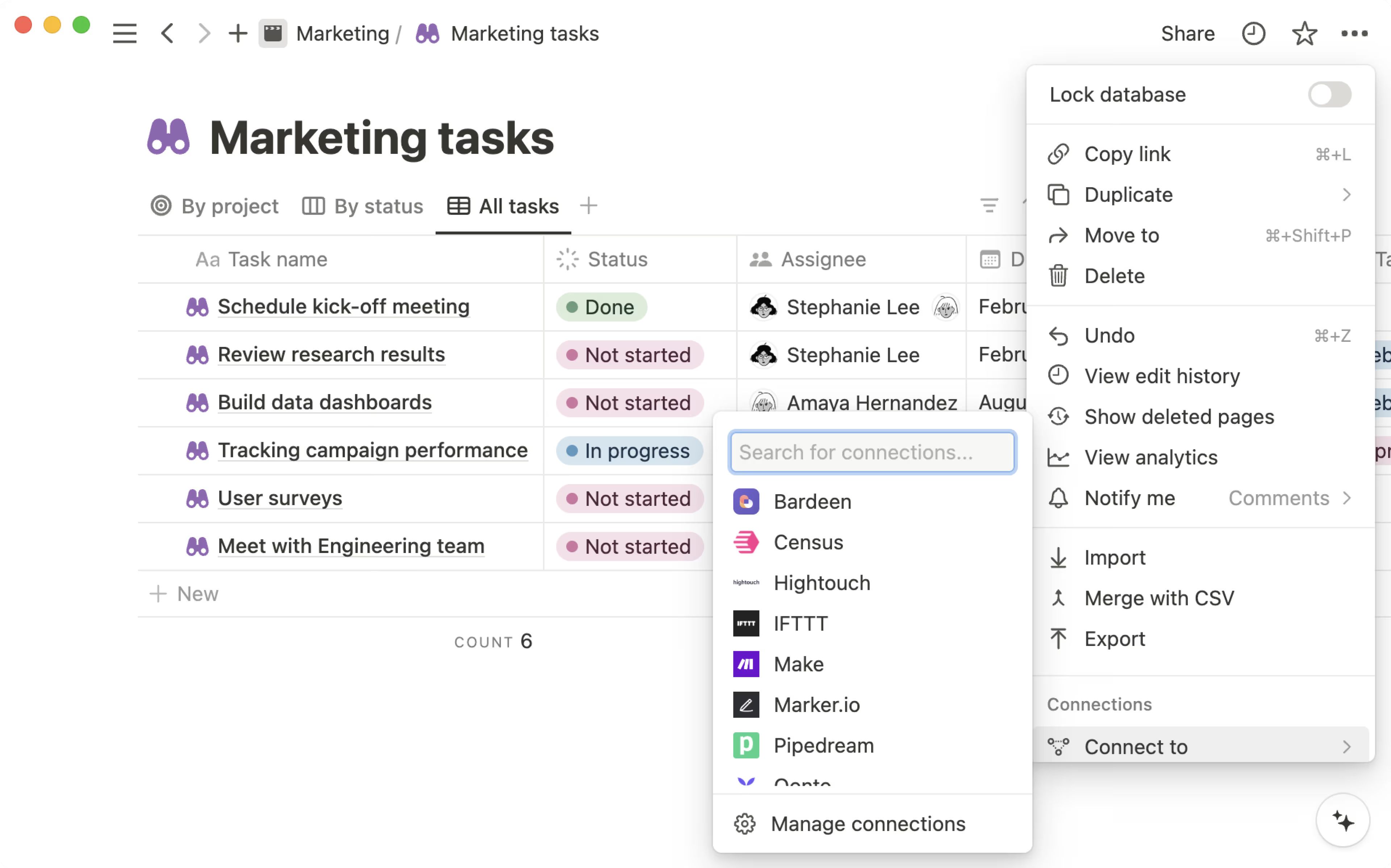
The connection will now appear in the
•••menu for the page.If you want to remove a connection from a page, hover over its name and then press
Disconnect.
Manage connections in pages
Note: This feature is only available to users on the Enterprise Plan. Domain verification is not required to enable this feature.
Workspace owners on the Enterprise Plan can decide what pages a connection can access, as well as who can connect or disconnect them from pages. To do this:
Go to
Settings→Connections.In the
Managetab, select•••next to a connection.In the menu that appears, select
Manage page access.Under
Select pages, find and select specific pages that you want to give permission to the connection to access.Under
Who can manage page access, open the dropdown menu. SelectDefaultif you want all workspace owners and members to be able to manage access. SelectWorkspace ownersif you want only workspace owners to be able to manage access.
If you choose to allow only Workspace owners to manage access, that means only they will be able to connect or disconnect internal and public connections from a page. Members won’t be able to take this action.
Note: Workspace owners manage all connections in a workspace. Learn more here →
Go to
Settings→Connections. Here, you'll see the full connections catalog of all connections grouped by app, with search and category filters.Select a connection to review or update it. You can edit settings, change permissions, or disconnect.
Use the
Managetab to view admin controls including approval settings and connected-member visibility.
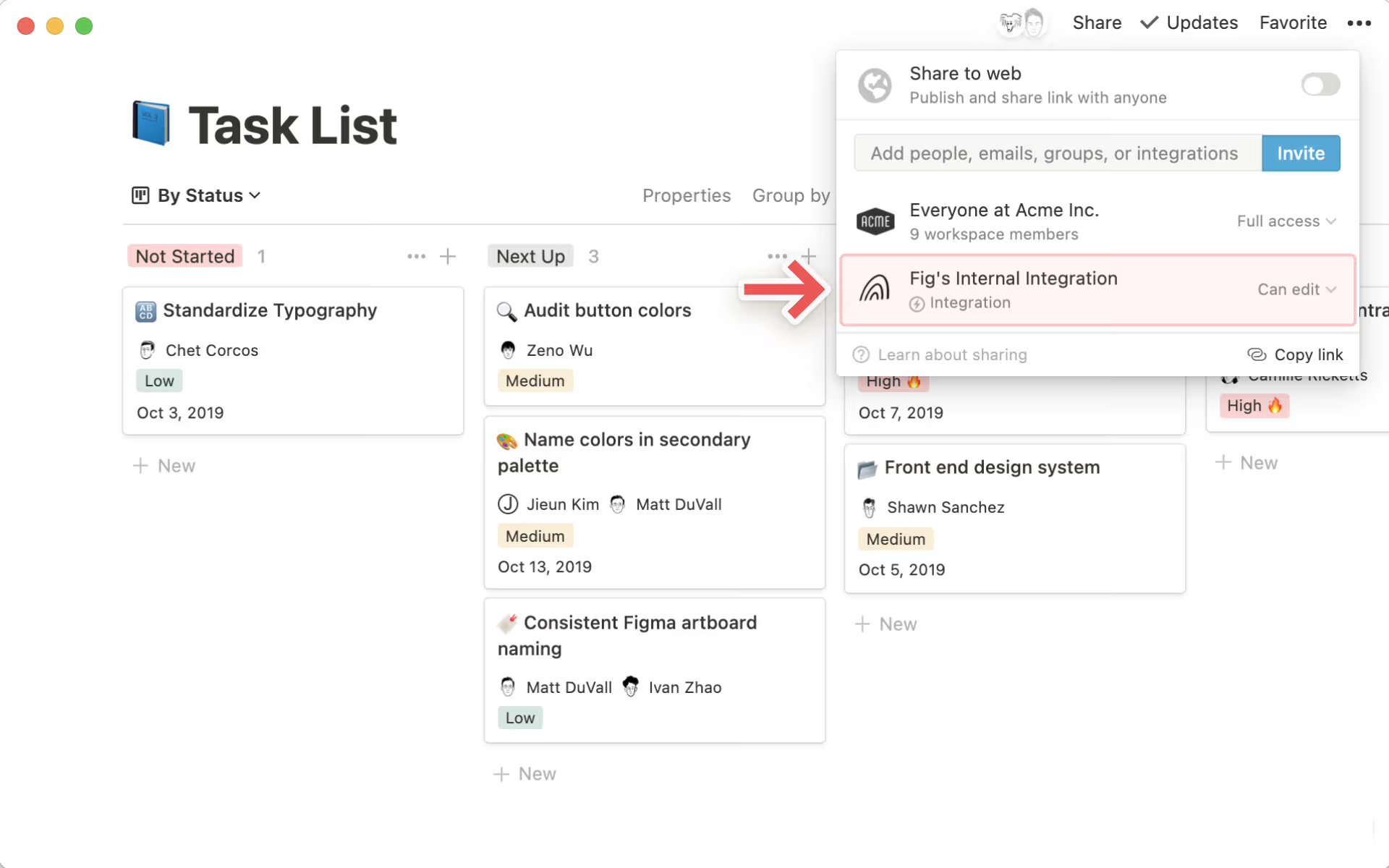
Click the
•••next to an connection to see additional options:Retrieve an internal API token
Visit the developer's website or contact their support
View users with access to the connection
Disconnect the connection
Looking for a way to monitor and respond to real-time changes in your Notion workspaces? Try connection webhooks!
Go to Settings → Connections to discover, install, and manage all the tools you connect to your Notion workspace.
To open the connections page:
Go to
Settingsin your sidebar.Select
Connections.
You'll see all available connections grouped by app. Use the search bar or filters to find a specific connection, or browse by category.
Open
Settings→Connections.Find the connection you want and select it to open its details.
Follow the setup steps to authorize and connect your account.
Once installed, you can add the connection to specific pages or databases from the ••• menu on any page.
Note: On Enterprise plans, workspace owners can limit which connections members are allowed to install. If a connection isn't available to you, contact your workspace owner.
Workspace owners on Enterprise plans can:
Restrict which connections members are allowed to install.
Build and manage an approved connections list.
View all members who have a specific connection installed.
Disconnect members from a connection.
Go to Settings → Connections and select the Manage tab to access these controls.
Learn more about how to manage connections in Enterprise connection settings →

Check out our Connections gallery →
Install directly from a partner platform via OAuth
Notion has partnered directly with several services (such as Zapier and Typeform). You can add our partners' public connections to your workspace directly through their sites via OAuth.
Search for
Notionin the partner platform's app menu and add it.In the resulting authentication menu, you'll be asked by the partner connection to allow access your workspace. The access levels required by the connection will be specified.
Connections are workspace-specific! Click the workspace name at the top right to switch to another workspace if needed. Then, press
Select pages.
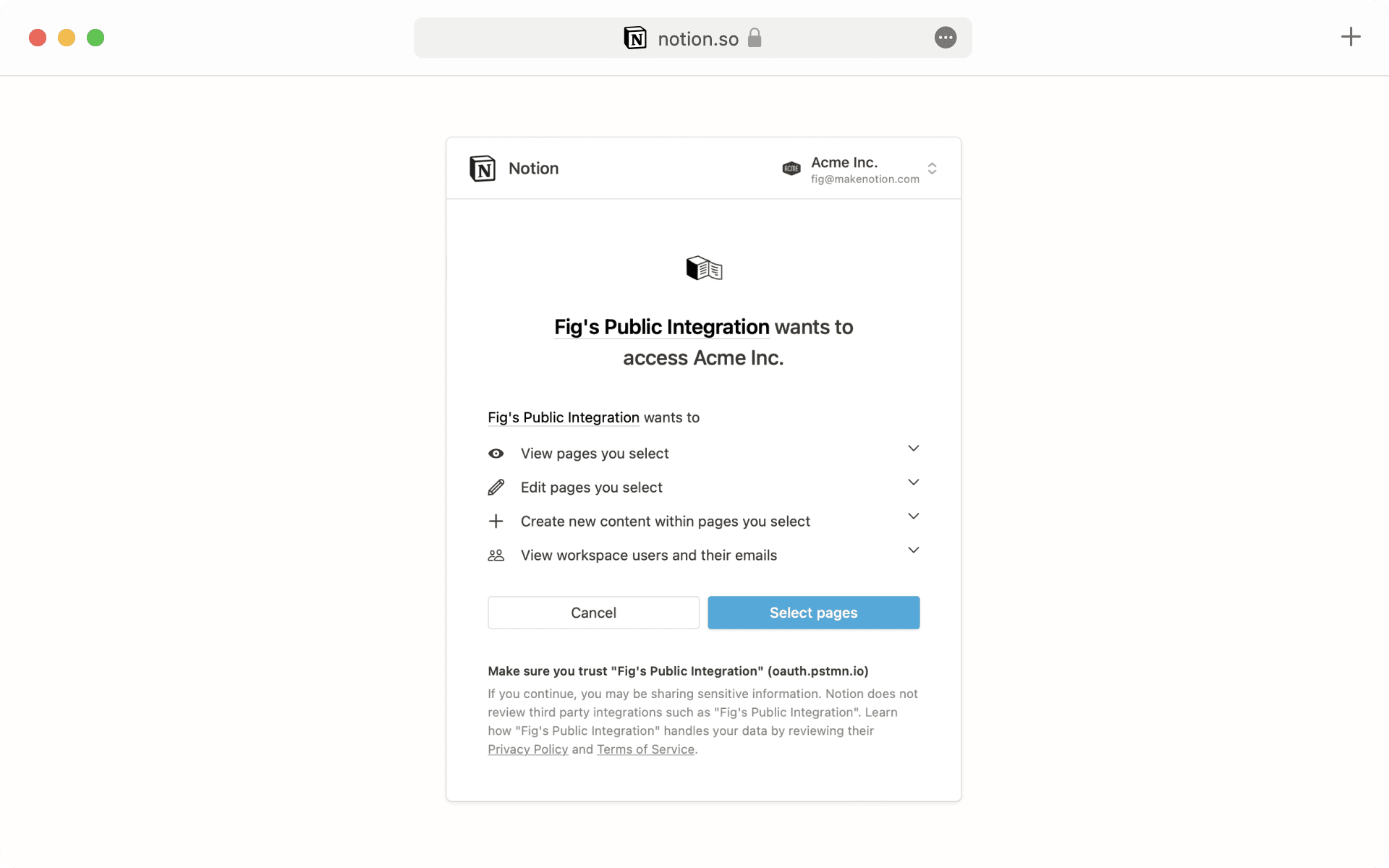
Now, you'll see a list of all of the pages in the selected workspace. Choose the pages you would like the connection to be able to access, and then press
Allow access.Once you've completed the authentication, you'll see this connection in your workspace's
Settingsmenu →Connections.Click the
•••menu next to the connection name to visit the developer's website, contact the developer's support team, or disconnect the connection from your workspace.
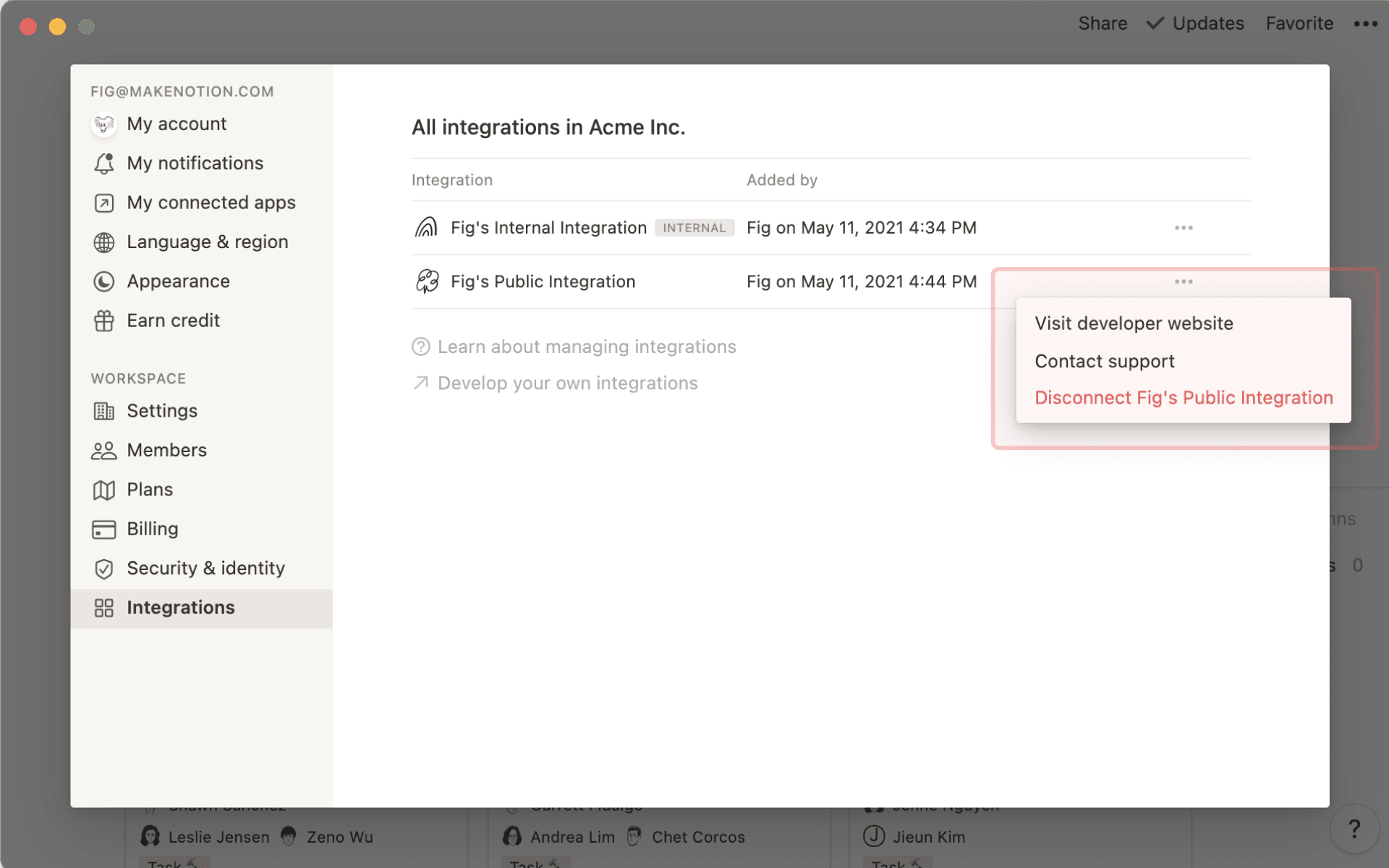

Tip: Want to see partner connections in action? Check out this guide →
Connect via installation access token
Some partner platforms require an installation access token in order to link to your workspace.
In this case, first follow these instructions to create a corresponding internal connection for your workspace.
Once you've created the internal connection, navigate to
Settingsin your sidebar and then theConnectionstab.Click the
•••menu next to the existing connection that you'd like to link to a partner platform, and pressCopy installation access token.
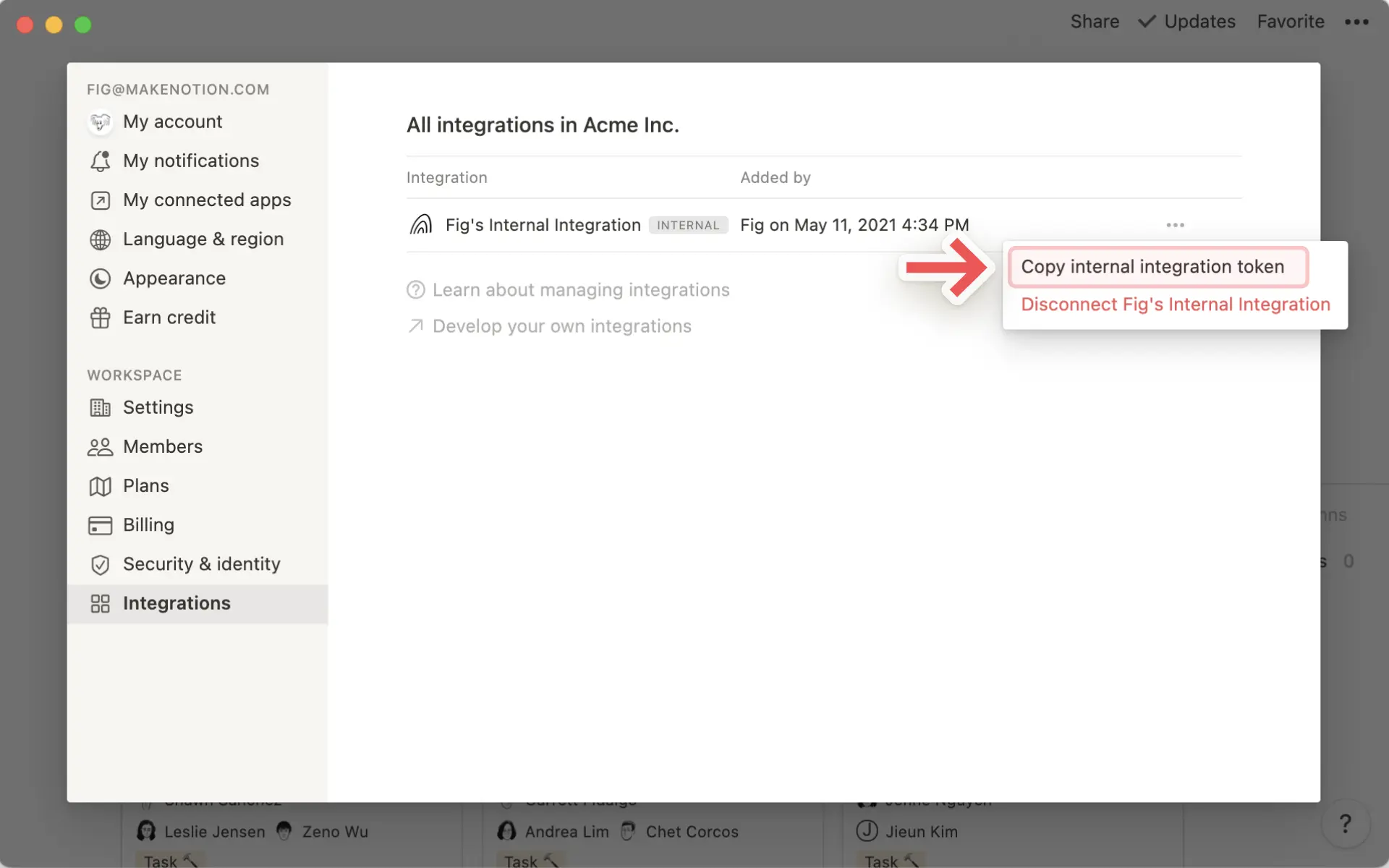
Paste this installation access token into the corresponding field on the partner platform's set up form.
Note: Notion does not support troubleshooting for partner connections. Please direct any feedback and questions to the respective partner's support team.