




How is this different from Notion Agent in the bottom right corner?
How is this different from Notion Agent in the bottom right corner?
Notion Agent helps you:
Draft, edit, and summarize content.
Answer questions about pages and databases.
Perform one-off tasks while you work.
Custom Agents:
They follow precise instructions you define.
They can run autonomously in the background via triggers and schedules.
They operate only on the pages, databases, and external tools you explicitly grant.
Notion Agent is on-demand, whereas Custom Agents are autonomous.
If a run fails, how can I debug it?
If a run fails, how can I debug it?
To debug a run:
Open the agent page.
Go to the
Activitytab in the agent'sSettingsor from the agent chat view.Find the failing run in the list.
Open it to see:
What triggered the run.
What the agent "thought" and did at each step.
Any error messages or explanations.
If the agent behaved incorrectly:
Adjust its instructions or triggers.
Re-run with updated configuration.
If something looks wrong or suspicious, provide a thumbs-down and a detailed description where available so the team can improve the system.
What Slack app do I need to connect?
What Slack app do I need to connect?
To use Slack with Custom Agents:
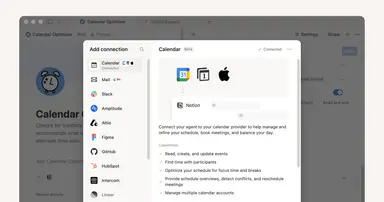
Make sure Slack is connected with the same email address you use for Notion.
When prompted during agent setup, connect the Slack app even if you already use Slack elsewhere in Notion.
Approve access and configure which channels the agent can read or write to.
The Agent showed "Working on it..." in Slack, but never replied. Why?
The Agent showed "Working on it..." in Slack, but never replied. Why?
The “Working on it…” typing indicator appears as soon as a Custom Agent is triggered. Sometime the Agent will decide not to reply (based on instructions), or may time out before it can send a message. If this happens, the typing indicator will disappear automatically.
If you want to avoid this, you can always turn off the typing indicator in the Slack trigger’s settings, or update the agent’s instructions so it’s more likely to respond to the situations you care about.
Who can create and see Custom Agents?
Who can create and see Custom Agents?
Custom Agents are available to everyone in the workspace by default.
Enterprise plan Admins can restrict access by going to
Settings>Notion AI>Agents>Control who can create agents.
For each agent:
The creator decides who can access it and at what level (
Full access,Can edit,Can interact).In Slack, anyone in a channel can see messages posted by that channel's agents.
Anyone with access to the agent can see its outputs, even if they don’t have access to the underlying Slack private channel.
Learn more about Custom Agent sharing & permissions here →
How will I know where this agent is going to run?
How will I know where this agent is going to run?
While configuring an agent, check:
Triggers to see:
Which schedules are active.
Which Notion databases or pages are watched.
Which Slack channels or other apps are connected.
Access / Permissions to see:
Which pages, databases, and external sources the agent can use.
Activity to see:
Where the agent has already run and what it did.
After you publish:
Use the Activity tab and logs to confirm agents are running only where expected.
Review runs regularly to keep behavior aligned with your workflows.
Why can't I access certain models (for example: Claude Fable 5) anymore?
Why can't I access certain models (for example: Claude Fable 5) anymore?
Your workspace has reached the fair use limit. Some AI models are temporarily unavailable for features like Notion Agent, Custom Agents, image generation, and page translation. Access resets in six hours.