
Hoe log ik uit bij mijn Notion-account?
Hoe log ik uit bij mijn Notion-account?
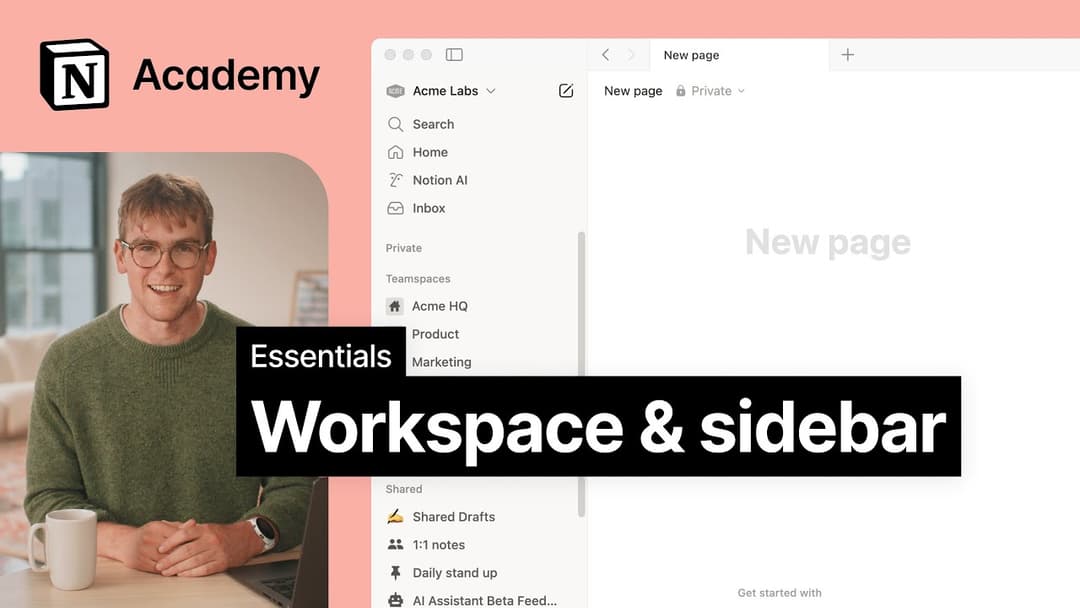
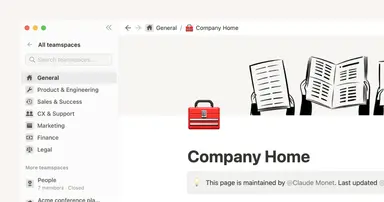
Klik op de naam van je huidige workspace helemaal linksboven in de zijbalk. Scrol omlaag om de optie Uitloggen te zien naast je e-mailadres.
Voor mobiele apparaten: tik op het pictogram ☰ linksboven en tik vervolgens op de workspace-schakelaar boven in het menu. Tik onderaan op Uitloggen.
Mijn zijbalk heeft geen secties. Hoe schakel ik deze in?
Mijn zijbalk heeft geen secties. Hoe schakel ik deze in?
De secties van de zijbalk worden bepaald door je accountinstellingen voor delen. Als er meer dan één persoon in je workspace is, wordt een sectie Workspace getoond in de zijbalk voor het werk waaraan je met deze persoon samenwerkt. De sectie Privé is voor persoonlijke pagina's die alleen jij kunt zien. Je kunt deze secties ook handmatig inschakelen door boven in de pagina op Delen te klikken en Workspace-toegang in te schakelen.
Why don't I see a full-page Home anymore? Did you change the sidebar?
Why don't I see a full-page Home anymore? Did you change the sidebar?
Home changed from a full-page experience to a part of your sidebar, organized into sections like Recents, Favorites, Teamspaces, Agents, and more, that can be shaped to fit your workflow. This puts your workspace navigation, AI threads, and notifications in one consistent, customizable place.
What will I see if I'm on a Free or Plus plan, or if AI is turned off for my workspace?
What will I see if I'm on a Free or Plus plan, or if AI is turned off for my workspace?
Free and Plus plans: You'll see the full sidebar layout, including the AI chat tab. You can use Notion AI with your available free AI credits.
AI turned off (Enterprise/Business): The AI chat tab will not appear. Instead, you'll see a New button in its place to create pages and other content.